Free Fire Panel

Free Fire Panel is an Android application designed to give Free Fire players a place to manage game-related settings from one interface.
Free Fire Panel
Free Fire Panel is an Android application designed to give Free Fire players a place to manage game-related settings from one interface. The app focuses on options such as sensitivity, HUD controls, aim settings, and other configuration tools. Players can review these options, adjust them to match their device, and test the changes in the game. The available settings can differ by app version and device, so users should check compatibility before installing the APK.
What Is Free Fire Panel?
Free Fire Panel is a configuration app made for players who want to manage different Free Fire settings from one place. Instead of changing each option without a clear setup, the app brings related controls into a single interface. This makes it easier to review sensitivity, controls, and other available settings before testing them.
The app is mainly used on Android devices. Its purpose depends on the tools included in the installed APK version. Some versions may offer more configuration options than others. For this reason, users should check the app information and supported Android version before installation.
The term panel free fire is also used by players when searching for this type of configuration tool. It refers to the same general idea of having a panel where game settings can be reviewed and adjusted.

How Does Free Fire Panel Work?
The basic process is simple. Users open the application and review the settings available in its interface. They can then select values that match their device and control preferences. After saving the configuration, they can test the changes in Free Fire and make further adjustments when needed.
A configuration does not work in the same way for every phone. Screen size, touch response, device performance, and personal control preferences can affect how a setting feels. Users should treat the available values as configuration options rather than fixed settings that work for every player.
The free panel interface may contain several categories. These categories can help users find sensitivity, HUD, aim, or other supported controls without moving through unrelated menus.
Free Fire Panel Features
The main purpose of the app is to provide access to game configuration options. The exact feature set depends on the APK version, but several settings are common in this type of application.
Sensitivity Configuration
Sensitivity controls how quickly the camera or aim responds to touch input. Free Fire Panel can provide sensitivity options that let users adjust their controls based on their device and playing style.
General sensitivity can affect overall camera movement, while scope settings can control movement when using different scopes. Players can test one setting at a time to understand how each change affects their controls.
HUD and Control Customization
HUD settings control the position and size of on-screen buttons. A suitable layout can make important controls easier to reach during a match.
Free Fire Panel may provide options for changing control values or viewing configuration settings in one place. Users should choose a layout that feels comfortable on their screen instead of copying a setup without testing it.
Aim and Camera Settings
Aim and camera controls affect how the screen responds when the player moves or aims. The available options depend on the version of the application.
A player can adjust these settings and test the result inside the game. Small changes can help users understand which configuration suits their touch response and control style.
Device-Based Configuration
Different Android phones can produce different results with the same settings. A low-end device may have different touch and performance characteristics from a newer phone.
The app can help users organize settings around their device. Users should check the phone’s performance, screen response, and available storage before choosing a configuration.
Simple Settings Management
A central interface makes it easier to review related options. Users can move between available settings and change values without searching through several unrelated menus.
The goal is simple settings management. The app does not make one configuration suitable for every device, so testing remains an important part of the setup process.
Free Fire Panel Sensitivity Settings
Sensitivity is one of the main areas users look at when using a configuration app. It controls how the game responds to touch movement and camera input.
General Sensitivity
General sensitivity affects overall camera movement. A higher value can make movement feel faster, while a lower value can provide more controlled movement. The right value depends on the player’s touch response and preferred control style.
Red Dot Sensitivity
Red Dot sensitivity controls movement while using a Red Dot sight. Players can adjust this value when they want more or less control during short and medium-range aiming.
2X Scope Sensitivity
2X Scope sensitivity affects camera movement while using a 2X scope. A setting that feels comfortable on one screen may feel different on another device, so testing is useful after each adjustment.
4X Scope Sensitivity
4X Scope sensitivity controls movement with a 4X scope. This setting can require more careful adjustment because small touch movements can have a larger effect when using a higher zoom level.
Sniper Scope Sensitivity
Sniper scope settings are intended for scoped aiming. Players can use the available value to control how the camera reacts to touch movement while using supported sniper scopes.
Free Look Sensitivity
Free Look controls camera movement when the player looks around without changing the main movement direction. The right setting depends on how quickly the user wants the camera to respond.
Free Fire Panel HUD and Control Settings
HUD settings are another important part of the application. They focus on the arrangement of controls on the screen.
Fire Button Position
The fire button needs to remain easy to reach during gameplay. A suitable position depends on the player’s hand position and screen size.
Users can review the available fire button settings and choose a position that does not interfere with other controls.
Custom HUD Layout
A custom HUD allows users to organize controls based on their preferred layout. Button placement can affect how quickly a player reaches movement, firing, and other controls.
The best layout is not the same for every user. Players should test the layout before making further changes.
Aim and Drag Controls
Aim and drag controls relate to touch movement during aiming. The response can change based on sensitivity and screen behavior.
Users should make small adjustments and test each configuration. Large changes can make it harder to identify which setting caused a difference.
Close-Range Controls
Close-range gameplay often requires quick movement and fast access to controls. A compact HUD can help users keep important buttons within reach.
The app can be used to review the relevant control settings before testing them in Free Fire.
Long-Range Controls
Long-range aiming can require more controlled camera movement. Users may prefer a different sensitivity and HUD arrangement for this type of play.
Free Fire Panel allows players to review the settings available to them and make changes based on their own control response.
Free Fire Panel for Android
Free Fire Panel is mainly associated with Android devices because the APK format is designed for Android installation. Compatibility depends on the APK version and the Android version running on the device.
Users should check the required Android version before installing the application. Storage space also matters because the device needs enough room for the APK and the installed app.
Low-End Android Phones
Low-end phones may have limited memory, storage, or processing power. Users should avoid applying settings without checking how the device responds.
A simple configuration can be easier to manage on a device with limited resources. Closing unnecessary apps can also leave more available memory for the game and configuration tool.
Mid-Range Android Phones
Mid-range phones usually provide more room for configuration and gaming tasks. Users can test sensitivity and HUD settings while checking how the device responds during gameplay.
The same values may feel different across phones because screen response and hardware can vary.
High-End Android Phones
High-end phones often have stronger hardware and faster touch response. Users can still need to adjust sensitivity because hardware performance does not determine personal control preference.
Testing remains important even on newer devices.
Android Tablets
Larger screens change the distance between controls and the amount of movement needed for touch input. Tablet users should review HUD placement and sensitivity instead of copying a phone configuration.
Free Fire MAX Panel
Free Fire MAX uses a related control system, but users may search for a separate panel configuration for the MAX version. The available compatibility depends on the application and its APK version.
A free fire max panel may include settings for sensitivity, HUD, aim, and other supported controls. Users should confirm that the application supports their installed game version before making changes.
The screen and performance differences between devices can also affect the way settings feel. A configuration that works on one Free Fire MAX device may need changes on another.
Free Fire MAX Compatibility
Compatibility should be checked before installation. The Android version, game version, app version, and device hardware can affect whether a configuration app works as expected.
Users should avoid assuming that every APK supports every Free Fire MAX release.
Free Fire Panel APK
Free Fire Panel APK is the Android package used to install the application. Users should check the APK information before starting the installation process.
Important details include the supported Android version, file source, app version, and required permissions. These details help users identify whether the package is suitable for their device.
A free panel apk should come from a source that provides clear information about the file. Users should avoid installing unknown packages when the source or permissions are unclear.
How to Install Free Fire Panel APK
Installing an APK requires a few basic steps on an Android device.
Step 1: Check Android Compatibility
Confirm that the device supports the Android version required by the APK.
Step 2: Check the APK File
Review the file information before opening it. Make sure the package comes from a source you trust.
Step 3: Allow APK Installation
Android may block installations from sources that are not allowed on the device. If required, change the relevant installation permission in Android settings.
Step 4: Open the APK
Locate the downloaded APK file and tap it to start the installation process.
Step 5: Install the Application
Review the requested permissions and installation information. Continue only when the details match what you expect from the app.
Step 6: Open Free Fire Panel
After installation, launch the app and review the available settings. Check the interface before changing any values.
How to Use Free Fire Panel
Using the application starts with reviewing the available configuration categories. Users should not change every setting at once because it becomes difficult to identify which value affected the controls.
Start with one category, such as general sensitivity. Test the result in Free Fire and then adjust the value if needed. The same process can be used for scope sensitivity, HUD controls, and other available options.
The panel ff configuration should match the user’s device and control preference. There is no single value that feels the same on every Android phone.
How to Choose Free Fire Panel Settings
Settings should be selected according to the device and the user’s control habits.
Check Device Performance
A device with limited resources may respond differently from a newer phone. Check how the application and game perform before making large configuration changes.
Check Touch Response
Screen response affects sensitivity. A fast touch response can feel different from a slower screen, even when both devices use the same values.
Consider Screen Size
Screen size changes the distance between HUD buttons. A layout that works on a small phone may not feel comfortable on a larger display.
Change One Setting at a Time
Changing several values at once makes testing harder. Adjust one setting, test it, and then move to the next value.
Test Your Configuration
A setting should be tested inside the game before it becomes part of your regular setup. If the controls feel difficult, return to the previous value and make a smaller adjustment.
Free Fire Panel Safety Checks
Before installing any third-party APK, users should review the source and file information. An APK should not be treated as safe just because its name contains Free Fire Panel.
Check the requested permissions and avoid packages that request access unrelated to their purpose. Users should also avoid modified files when the source does not explain what was changed.
Account protection is important when using any third-party application. Do not provide passwords, verification codes, or account credentials to an APK or an unknown service.
Common Free Fire Panel Problems
APK Is Not Installing
An APK may fail to install because of an unsupported Android version, damaged file, insufficient storage, or blocked installation permission. Check these points before trying the installation again.
Panel Does Not Open
If the app closes or fails to start, check device compatibility and available storage. An incompatible APK may not work on the installed Android version.
Settings Are Not Working
Settings may not apply when the application version is incompatible with the game or device. Check the supported versions and test the configuration again.
Compatibility Problems
Compatibility can change after an app or game update. If the panel stops working after an update, check whether a newer compatible version is available.
Download File Problems
A damaged or incomplete APK can cause installation errors. If the file size or download process appears incorrect, obtain the package again from a trusted source.
Free Fire Panel Advantages and Limitations
Free Fire Panel can make configuration easier by putting supported settings into one interface. Users can review sensitivity, HUD, and other available controls without searching through unrelated options.
The app also has limitations. Settings depend on the installed version, Android device, and game compatibility. A configuration that works for one player may not provide the same control response for another player.
The application should therefore be treated as a settings tool rather than a source of guaranteed gameplay results. Users should test each configuration and keep the values that feel suitable for their device.
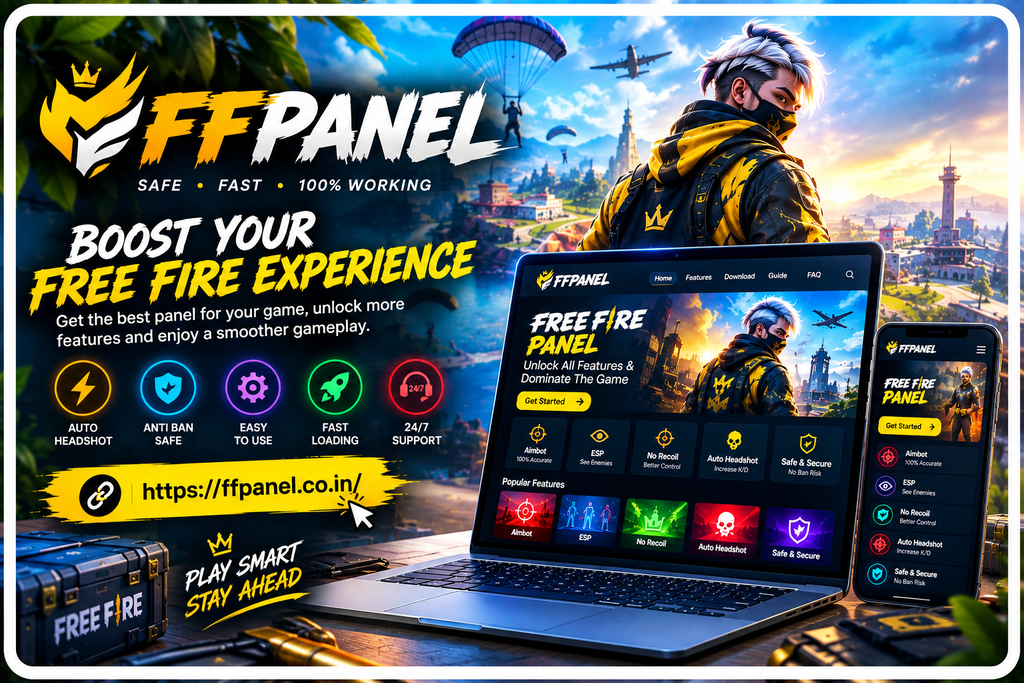
Free Fire Panel vs Free Fire MAX Panel
Free Fire Panel is a general term for a panel used with Free Fire-related settings. Free Fire MAX Panel refers to the same type of configuration concept when users are looking for settings for Free Fire MAX.
The two terms can overlap because both may involve sensitivity, HUD, aim, and control settings. Compatibility remains the key difference to check before using an APK.
Users searching for panel free fire max should confirm that the selected application supports the Free Fire MAX version installed on their device.
Frequently Asked Questions
Conclusion
Free Fire Panel provides an interface for managing supported Free Fire settings on compatible Android devices. Its main purpose is to organize options such as sensitivity, HUD, controls, aim, and other configuration settings in one place. Users can adjust these values based on their device and test the results inside the game.
The app does not provide one configuration that suits every player. Screen size, touch response, device performance, and personal controls can change how each setting feels. Checking compatibility before installation and making small changes during testing can make configuration easier.
For users who want to use a Free Fire Panel APK, the Android version, APK source, permissions, and application compatibility should be checked before installation. This keeps the focus on the app and helps users understand what the panel can and cannot do.